
Get Started with Game Companion
Follow these steps to join our private alpha and begin using your AI co-pilot.
Step 1: Join Discord & Request Access
The first step is to join our official Discord server. Once there, you can request access to the private alpha. This is where you will receive all communications and support.
Step 2: Account Approval & Signup
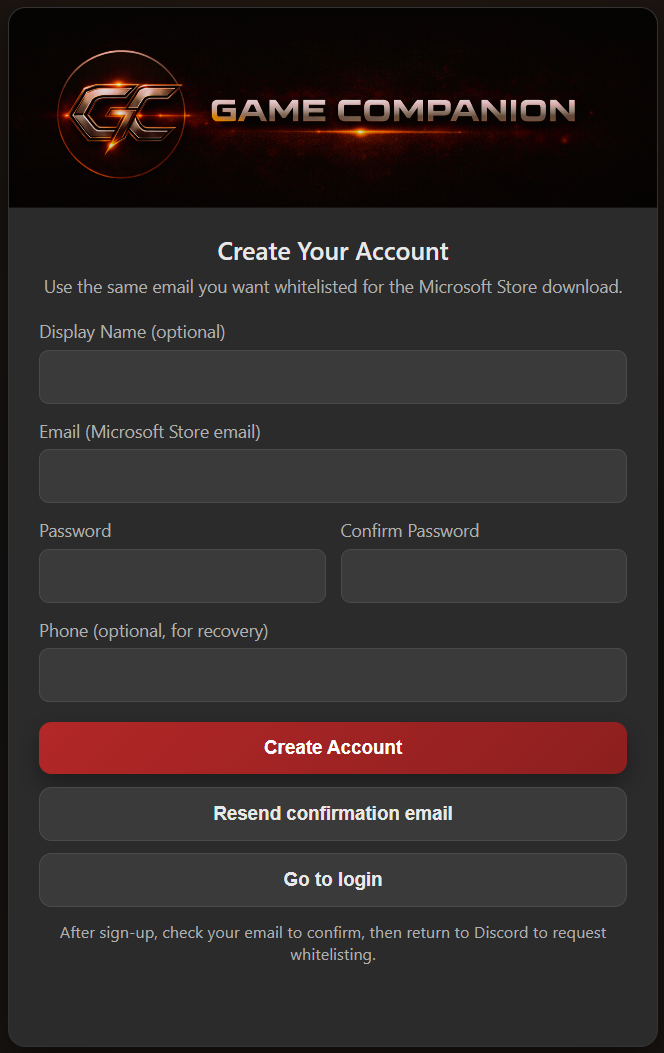
Once your request is approved, our team will send a private link to our website so you can create your Game Companion account. You will set your username and password on this screen. The email you use must match the email associated with your Microsoft Store account.
Step 3: Whitelisting & Installation
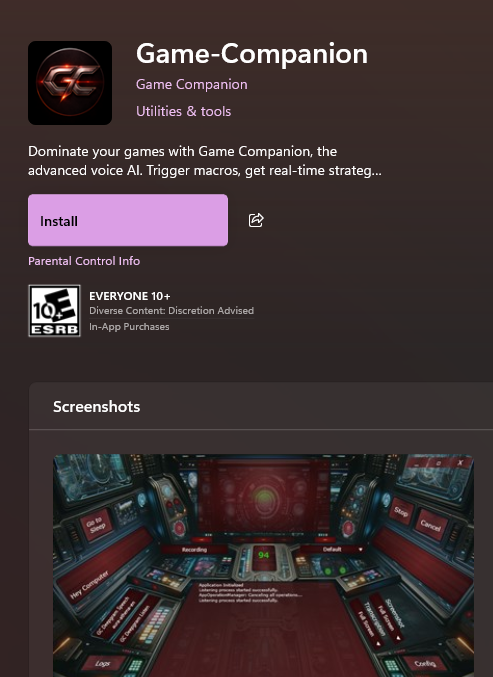
After you create your account, we will whitelist your Microsoft Store email. There may be a short delay between account creation and the whitelist update. If you need faster access, open a ticket in Discord and we can expedite it. You can use the restricted Microsoft Store link now: https://apps.microsoft.com/detail/restricted/9pgzd7njmvjf?hl=en-US&gl=CA.
Step 4: Log In & Choose Your Plan
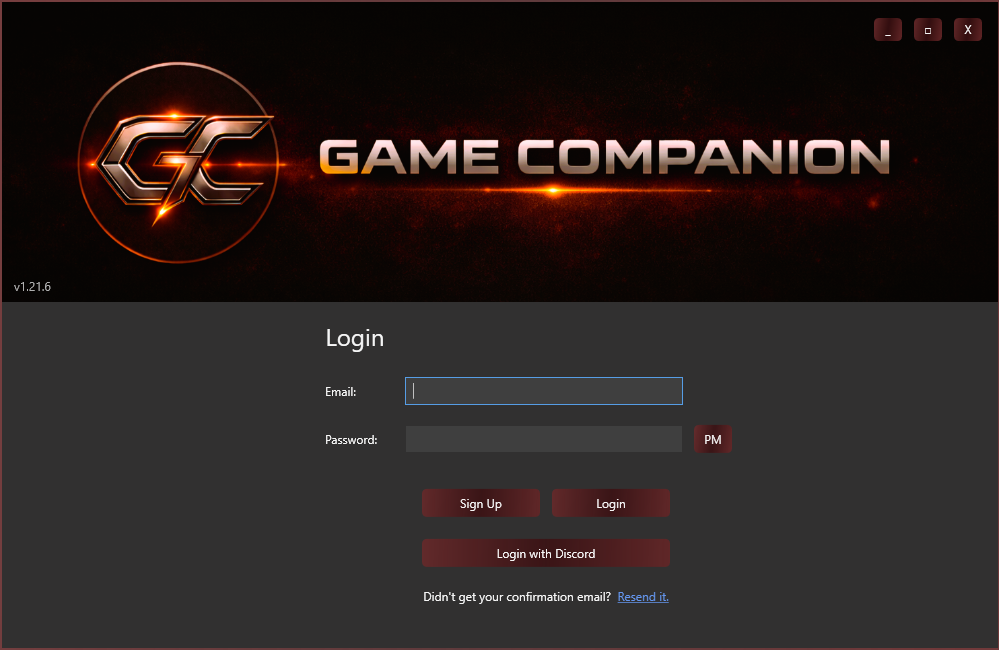
After installation, launch Game Companion and log in with the credentials you created. You will have the option to start a 14-day free trial or purchase a full subscription to unlock all features.
A Note on the Alpha
As we are in an early alpha stage, we are constantly tweaking the value of services and Game Companion tokens. Access is currently limited to testers who can provide valuable feedback. Higher subscription tiers unlock advanced customization, more brain packages, and higher monthly token counts. Additional tokens can be purchased to top up your account at any time.